Connect an AI assistant
You can connect an AI assistant, like Claude or ChatGPT, to your OpenSignup account. Then you can ask it to make a signup for you, or to change one you already have.
You see what it asks to do before you allow it, and you can disconnect it at any time.
What an assistant can do
A slot is one thing people can sign up for. A spot is one place in a slot. With the permissions you allow, an assistant can work on your signups the way you do:
- See your signups, their slots, and how many spots in each slot are taken.
- Make a new signup with all its slots. It starts as a draft, so nobody can sign up until it's published.
- Change a signup's title, description, closing time, reminder emails, fields and slots. A field is a detail every slot has, like its date.
- Publish, close, archive or delete a signup. Closing, archiving or deleting can't be undone.
It can't see the names or email addresses of people who sign up.
It acts as you, so it can't do anything you couldn't do yourself. What it reads from your signups goes to whoever runs the assistant, the same as anything you type to it.
Add OpenSignup to your assistant
Your assistant needs this address:
https://opensignup.org/api/mcpAssistants call what you're adding a connector, or an MCP server. MCP is a shared standard that lets AI assistants connect to other apps.
The steps below happen in your assistant, not in OpenSignup, and its menus change from time to time. If a name doesn't match, look in its settings for connectors. You may need a computer: some assistants don't let you add a connector from their phone app.
- In Claude, go to Settings, then Connectors. Add a custom connector, and paste the address.
- In ChatGPT, turn on developer mode in its settings. Then add a connector, and paste the address.
In Claude Code, run this command:
claude mcp add --transport http opensignup https://opensignup.org/api/mcpThen type /mcp in Claude Code, and choose opensignup to sign in.
- In another assistant, look for a way to add a connector or an MCP server.
Approve the connection
When you add the connector, your assistant opens a OpenSignup page in your browser. If you aren't signed in, sign in first.
If the page says This connection request has expired, go back to your assistant and start again.
The page calls your assistant an app. It asks if you want to let a website, like claude.ai, use your account.
OpenSignup gets the app's details from that website. The app picks its own name, so go by the website. Only allow it if you trust that website.
If the people who run your site set the app up for you, the page says so instead of naming a website.
Under It will be able to, read what your assistant is asking for. It can ask for:
- See your signups and their slots, including how many spots are taken.
- Create and edit signups. This covers everything that changes a signup, including publishing and deleting it.
- See who has signed up, including their names and email addresses. Assistants aren't offered this, so most don't ask for it. Even if you allow it, no assistant can read these details. If one asks anyway, the page shows it in amber with a warning.
You allow everything on the list, or nothing.
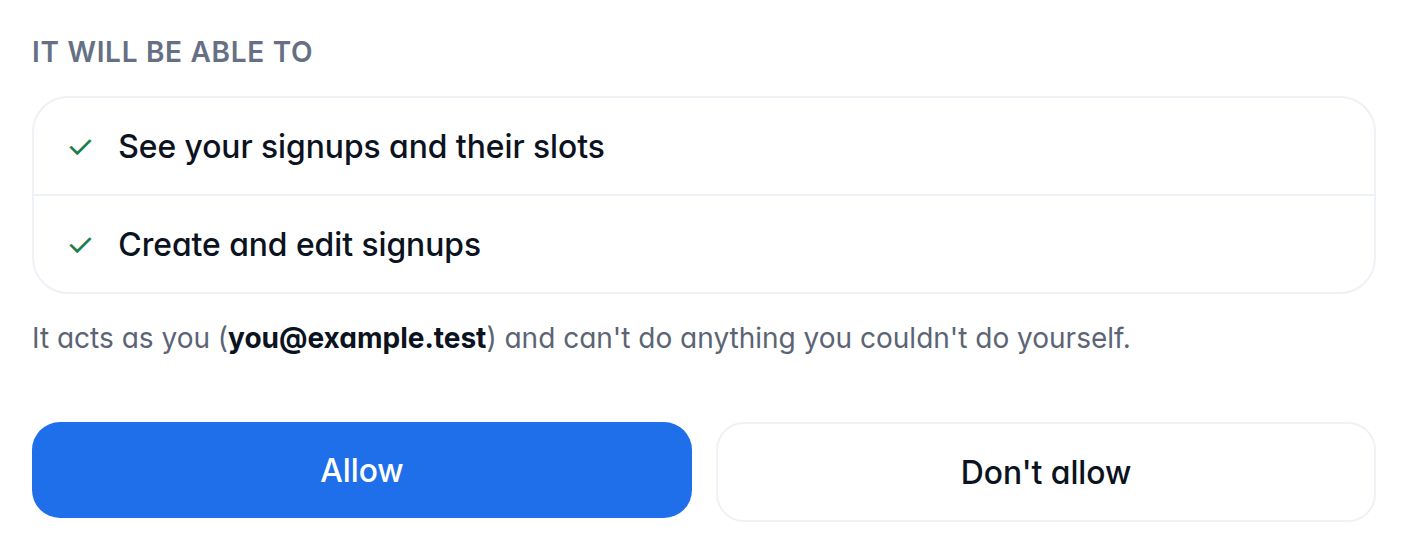
Choose Allow. If you choose Don't allow instead, nothing new is connected.
Go back to your assistant. It can now work on your signups.
Try it
Ask for a signup in your own words. For example:
Make a snack duty signup for six Saturday games, starting 3 October. Two families bring snacks to each game.
The assistant makes it as a draft. You'll find it on the Your signups page, marked draft. Check every slot there before you publish.
Once it's published, anyone with the link can sign up. When it looks right, publish it yourself or ask the assistant to.
How long a connection lasts
- A connection lasts up to 90 days from the first time you choose Allow. After that, you need to approve it again.
- If your assistant doesn't work on your signups for 30 days, you need to approve it again sooner.
- If you approve the same assistant again, it keeps the connection you have. It doesn't add a second one, or restart the 90 days.
Disconnect an assistant
Disconnecting stops an assistant from working on your signups. You can connect it again later.
Choose your email address at the top of any page in your account. On a phone, it says Settings.
Choose Connected apps. Each assistant shows its website or name, what you allowed it to do, and when it was last used.
An assistant can keep working for up to 15 minutes after you disconnect it, and nobody can cut that short. Next to the assistant, choose Disconnect.
Can't find what you need? Email hello@opensignup.org.